The Metropolitan Police virus will lock you out of your computer and applications, so whenever you’ll try to log on into your Windows operating system or Safe Mode with Networking, it will display instead a lock screen asking you to pay a non-existing fine of 100£ in the form of a Ukash or PaySafecard code.
Furthermore, to make this alert seem more authentic, this virus also has the ability to access your installed webcam so that the alert shows what is happening in the room.
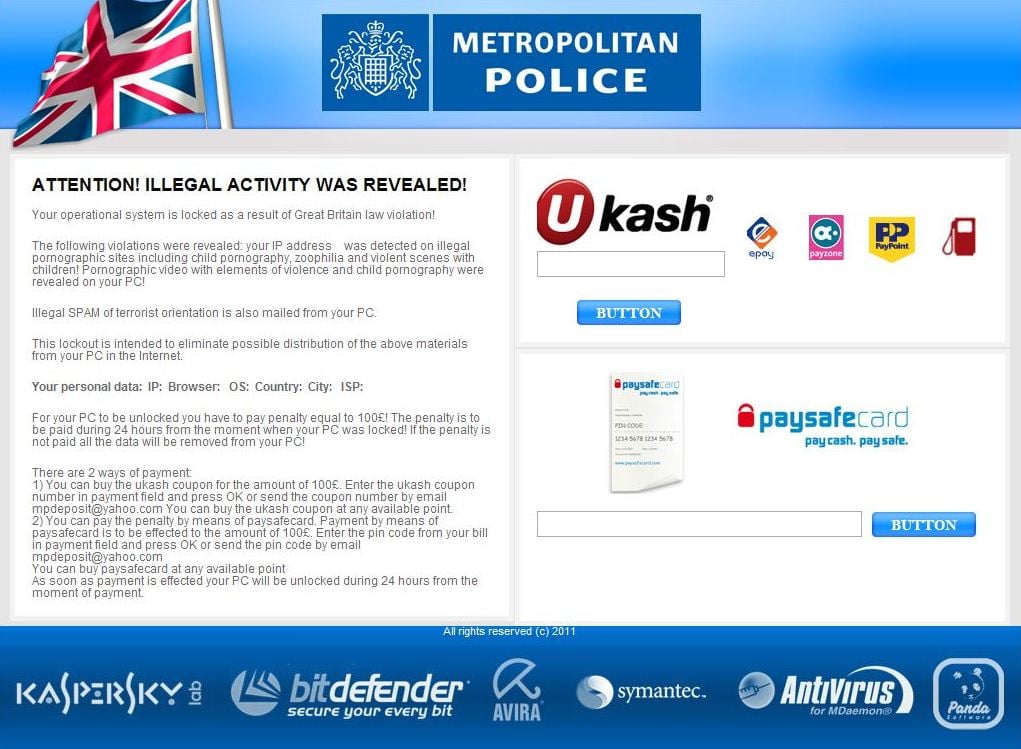
If your computer is infected with Metropolitan Police virus,then you are seeing the below bogus notification:
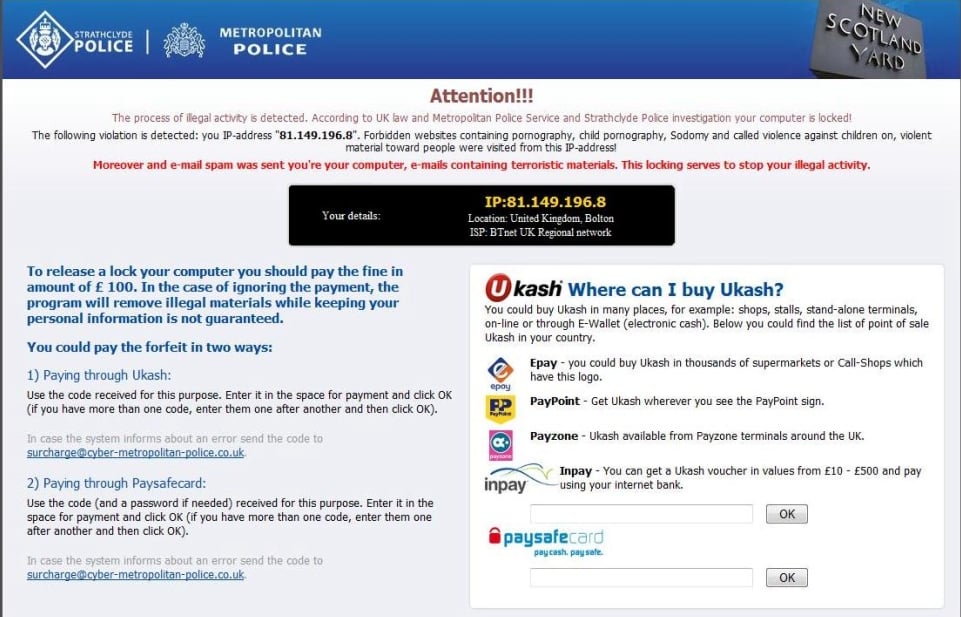
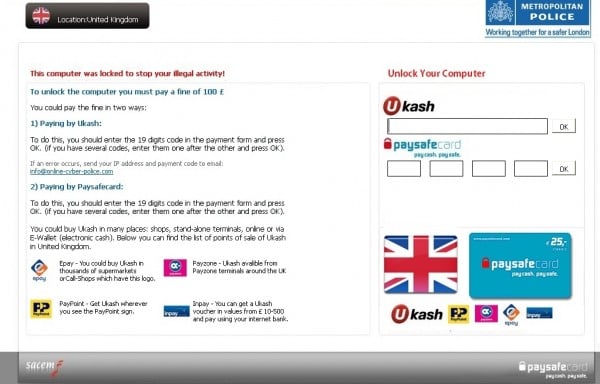
Metropolitan PoliceMetropolitan Police is nothing more than a scam and you should ignore any alert that this malicious software might generate and remove this trojan ransomware from your computer.
Attention! Illegal activity was revealed!
Your operational system is locked as a result of Great Britain law violation!
The following violations were revealed: your IP address [removed] was detected on illegal pornographic sites including child pornography, zoophilia and violent scenes with children! Pornographic video with elements of violence and child pornography were revealed on your PC!
This lockout is intended to eliminate possible distribution of the above materials from your PC in the Internet.
For your PC to be unlocked you have to pay penalty equal to 100£! The penalty is to be paid during 24 hours from the moment when your PC was locked! If the penalty is not paid all the data will be removed from your PC!
There are 2 ways of payment:
1. you can buy the ukash coupon for the amount of 100£. Enter the Ukash coupon number in payment field and press OK or send the coupon number by email mpdeposit@yahoo.com . You can buy the Ukash coupon at any available point.
2. You can pay the penalty by means of Paysafecard. Payment by means of Paysafecard is to be effected to the amount of 100£. Enter the pin code from your bill in payment field and press OK or send the pin code by email mpdeposit@yahoo.com
You can buy Paysafecard at any available point.
As soon as payment is effected your PC will be unlocked during 24 hours from the moment of payment.
Under no circumstance should you send any money to Metropolitan Police cyber criminals,as this could lead to identity theft,and if you have, you should contact your credit card company and dispute the charge stating that the program is a scam and a computer virus.
Metropolitan Police Ukash Ransomware – Virus Removal Guide
This page is a comprehensive guide, which will remove the Metropolitan Police infection from your your computer. Please perform all the steps in the correct order. If you have any questions or doubt at any point STOP and ask for our assistance.The Metropolitan Police will start automatically when you login to your computer and display its screenlocker so that you are unable to access your computer, therefore we will need to remove this infection by using any of the below methods:
OPTION 1: Remove Metropolitan Police lock screen virus with System Restore
OPTION 2: Remove Metropolitan Police virus with with HitmanPro Kickstart
OPTION 3: Remove Metropolitan Police virus with Kaspersky Rescue Disk
OPTION 1: Remove Metropolitan Police lock screen virus with System Restore
System Restore helps you restore your computer’s system files to an earlier point in time. It’s a way to undo system changes to your computer without affecting your personal files, such as e‑mail, documents, or photos.Because the Metropolitan Police virus will not allow you to start the computer in Windows regular mode, we will need to start System Restore from the Safe Mode with Command Prompt mode.
STEP 1: Restore Windows to a previous state using System Restore
- Reboot your computer into Safe Mode with Command Prompt. To do this,
turn your computer off and then back on and immediately when you see
anything on the screen, start tapping the F8 key on your keyboard.
If you are using Windows 8, the trick is to hold the Shift button and gently tap the F8 key repeatedly, this will sometimes boot you into the new advanced “recovery mode”, where you can choose to see advanced repair options. On the next screen, you will need to click on the Troubleshoot option, then select Advanced Options and select Windows Startup Settings. Click on the Restart button, and you should now be able to see the Advanced Boot Options screen. - Using the arrow keys on your keyboard, select Safe Mode with Command Prompt and press Enter on your keyboard.
- At the command prompt, type rstrui.exe, and then press ENTER.
Alternatively, if you are using Windows Vista, 7 and 8, you can type: C:\windows\system32\rstrui.exe , and press Enter. And if you are a Windows XP user, type C:\windows\system32\restore\rstrui.exe, then press Enter. - System Restore should start, and you will display also a list of
restore points. Try using a restore point created just before the date
and time the Metropolitan Police lock screen virus has infected your
computer.
- When System Restore has completed its task, start your computer in Windows regular mode, and perform a scan with Malwarebytes Anti-Malware and HitmanPro, as seen in the next step.
![[Image: F8 key]](https://lh3.googleusercontent.com/blogger_img_proxy/AEn0k_uiL5s3W6Kg5r81w8IZRD0VE7_byIPIP_uyE6zMBR-c0PEgeTlQXgHgbPOBhoLGdt1AQPa8--Zc6F70-kh7OwNiUtuAg5QYbzhMivTGWR2-CYF1M8MtkOfNH3KYhlURYnkspkDNf8p1pg=s0-d "Windows F8 key")
![[Image: Starting computer in Safe Mode with Command Prompt]](https://lh3.googleusercontent.com/blogger_img_proxy/AEn0k_vHWASOQxYe1Gw54vdBTaIcea9DSh013FHC9KUUxD1_juqhKpFgLrxjLOga0DtQjFhOdaOOrgBm6djYCbloMRFEED41AklyMzq6HQAFlxpA4QfKZZqa2deAqH9VFr4gYaGzZ6JZBz4bWdmPbOBFHIiPB4rIEYJpv_OVzdkM=s0-d "Advanced Boot Options screen")
![[Image: Start System Restore to remove lock screen virus]](https://lh3.googleusercontent.com/blogger_img_proxy/AEn0k_sBVtJ0tWEW1wk7iTGgWPZGhx5tV6KbuSLpjFeocwCL94D-5Ai8bvxLo0-dCdkxQEGkBzl7Fjaeh3yN3cqyVZvx2klFdWICLNREfpxfQT3cvtQjoacQrkIC2BawOtnYrNnleq4fTkemqQ60lGFJwrk0frpDUUg=s0-d "rstrui.exe command in Safe Mode with Command Prompt")
![[Image: Restore settings to remove ransomware]](https://lh3.googleusercontent.com/blogger_img_proxy/AEn0k_u7wG9dEmE9lqgTHbTurYEKkmTVGhTspVxAbFlmCaAPF5bgwysSMizwql4I9QZQ0yRwl8Wr7lVHp3cGyvPvQCkGTWGqGVvFrMlT5WNwfI6WDFWhr2wg3c4p-YKdyOkpynp2TOSj1BUy1SqYRuvU=s0-d "Restore your computer's system files to an earlier point in time")
STEP 2: Remove Metropolitan Police malicious files with Malwarebytes Anti-Malware Free
Even after using System Restore,- You can download Malwarebytes Anti-Malware Free from the below link, then double-click on the icon named mbam-setup.exe to install this program.
MALWAREBYTES ANTI-MALWARE DOWNLOAD LINK(This link will open a download page in a new window from where you can download Malwarebytes Anti-Malware Free) - When the installation begins, keep following the prompts in order to continue with the setup process, then at the last screen click on the Finish button.
- On the Scanner tab, select Perform quick scan, and then click on the Scan button to start searching for the Metropolitan Police malicious files.
- Malwarebytes’ Anti-Malware will now start scanning your computer for Metropolitan Police virus as shown below.
- When the Malwarebytes Anti-Malware scan has finished, click on the Show Results button.
- You will now be presented with a screen showing you the computer
infections that Malwarebytes Anti-Malware has detected. Make sure that
everything is Checked (ticked), then click on the Remove Selected button.
![[Image: Malwarebytes Anti-Malware final installation screen]](https://lh3.googleusercontent.com/blogger_img_proxy/AEn0k_tq6sCW3Pre-E6fur7O3PPrDCPnQSuHfLtM3nLWZEALxAmCNGsxbk4RBqwx8sklNWgjsknd_l4wnIzv3sMYMEPP4Pr7Y1sjIAaK4glIB79uPRFEdvdJ5f5JQ3gJ_Zu2anM9TjDnwjoPsSXqg2SP8u3n5uTDMTltM-4=s0-d "Malwarebytes Anti-Malware installation screen")
![[Image: Malwarebytes Anti-Malware Quick Scan]](https://lh3.googleusercontent.com/blogger_img_proxy/AEn0k_tpJSyXu1ZoAuX2ZXeekq4RG0Xrk4GrkHDX71iYwV555-_knb4nL0F0zHta1aTeVGcQ_0Qo58d548IALBS7X2iMG3dj8oVbmxGgD70Lkp_Ky944Jnt-axEozA9ILtC0tdtcNQ_JOFIYYNH0oSinhNJHVKuXtbGQ=s0-d "Run a Quick Scan with Malwarebytes Anti-Malware")

![[Image: Malwarebytes Anti-Malware scan results]](https://lh3.googleusercontent.com/blogger_img_proxy/AEn0k_tSyHDhpK82jrdPwuGc4g7j8KBHZWKeJUz14WwbV4Qw6AHPYtwCRWT8MuPVq0W-1rRTOii-n4qxqQ1CVvaYK95TB7bZdGNKYyK-e-KS3vvBFKdMjM9Gry8MgAQ-YKmBokhs6qm2TSUQ8zDnC4q0T0e2U_wXXyHHbYM=s0-d "Malwarebytes when the system scan has completed")
![[Image: Malwarebytes Anti-Malwar removing Metropolitan Police virus]](https://lh3.googleusercontent.com/blogger_img_proxy/AEn0k_uU54ooUidssxSLykj-vRtsii8XNSX0be2iydSMwlzJqw87iEgrgc5NpI5arTs2myPetYtlJxzVVCkMOv0reL_2DGg78UMqvvOOaIaJya20GVliwLrO70SNgqyYoC2pFybj0O2t--Q4wQ1Np2jc64cy73Y51-DeXXQl=s0-d "Malwarebytes Anti-Malwar removing Metropolitan Police virus")
STEP 3: Double-check for the Metropolitan Police virus with HitmanPro
- You can download HitmanPro from the below link:
HITMANPRO DOWNLOAD LINK (This link will open a web page from where you can download HitmanPro) - Double-click on the file named HitmanPro.exe (for 32-bit versions of Windows) or HitmanPro_x64.exe (for 64-bit versions of Windows). When the program starts you will be presented with the start screen as shown below.
Click on the Next button, to install HitmanPro on your computer.
- HitmanPro will now begin to scan your computer for Metropolitan Police malicious files.
- When it has finished it will display a list of all the malware that the program found as shown in the image below. Click on the Next button, to remove Metropolitan Police virus.
- Click on the Activate free license button to begin the free 30 days trial, and remove all the malicious files from your computer.


![[Image: HitmanPro 30 days activation button]](https://lh3.googleusercontent.com/blogger_img_proxy/AEn0k_u3RIKkH-2vaAkz0w12TYywbP2HqIfoirJfu2HpTY3e3uSRK3T8YRRHsJVUWfi3tSbhmWrMw2znX_bXbWSTUB5XYCcofY1rtDdkJe_232uQB4TqZSpzOWNlQ0UJwH4QiZx1tPEv2CdL-orBsT3K-BgmxAQG=s0-d "HitmanPro free 30 days trial")
OPTION 2: Remove Metropolitan Police virus with with HitmanPro Kickstart
If you cannot start your computer into Safe Mode with Command Prompt mode, we can use the HitmanPro Kickstart program to bypass Metropolitan Police lock screen.As the Metropolitan Police ransomware infection locks you out of your computer, you will need to create a bootable USB drive that contains the HitmanPro Kickstart program.
We will then boot your computer using this bootable USB drive and use it to clean the infection so that you are able to access Windows normally again.
You will also need a USB drive, which will have all of its data erased and will then be formatted. Therefore, only use a USB drive that does not contain any important data.
- Using a “clean” (non-infected) computer, please download HitmanPro Kickstart from the below link.
HITMANPRO DOWNLOAD LINK (This link will open a download page in a new web page from where you can download HitmanPro Kickstart) - Once HitmanPro has been downloaded, please insert the USB flash drive that you would like to erase and use for the installation of HitmanPro Kickstart. Then double-click on the file named HitmanPro.exe (for 32-bit versions of Windows) or HitmanPro_x64.exe (for 64-bit versions of Windows).
To create a bootable HitmanPro USB drive, please follow the instructions from this video:
- Now, remove the HitmanPro Kickstart USB drive and insert it into the Metropolitan Police infected computer.
- Once you have inserted the HitmanPro Kickstart USB drive, turn off
the infected computer and then turn it on. As soon as you power it on,
look for text on the screen that tells you how to access the boot menu.
The keys that are commonly associated with enabling the boot menu are F10, F11 or F12. - Once you determine the proper key (usually the F11
key) that you need to press to access the Boot Menu, restart your
computer again and start immediately tapping that key. Next, please
perform a scan with HitmanPro Kickstart as shown in the video below.
- HitmanPro will now reboot your computer and Windows should start normally. Then please Malwarebytes Anti-Malware and HitmanPro, and scan your computer for any left over infections.
![[Image: Windows Boot Menu screens]](https://lh3.googleusercontent.com/blogger_img_proxy/AEn0k_vh4IWtiYXNMARy5FnNUw3q1lU066tE6ddufrFRFeczn7VjaWwAg2QJcAAs6_6z6rITYsBWPlCroQmufVwRouD_kQBnmw7v5GLPbtSxqBzXBfwQ5Ip4cQgVqvntQgOYt_v_yLGd2uH3Zr_dS9fMzKi_CX2Z=s0-d "Windows Boot Menu screens")
OPTION 3: Remove Metropolitan Police virus with Kaspersky Rescue Disk
If any of the above methods did not clean your infected computer, we can use a Kaspersky Rescue Disk Bootable to clean the Windows registry and to perform a system scan to remove the Metropolitan Police virus.To create a bootable Kaspersky Rescue Disk, we will need the following items:
- A clean (non-infected) computer with Internet access
- A blank DVD or CD
- A computer with a DVD or CD burner
STEP 1: Download and create a bootable Kaspersky Rescue Disk CD
- You can download Kaspersky Rescue Disk utility from link below:
KASPERSKY RESCUE DISK DOWNLOAD LINK (This link will automatically download Kaspersky Rescue Disk (kav_rescue_10.iso) on your computer.) - To create the bootable rescue disk, we will need to use the ImgBurn program. You can download ImgBurn from the below link, then install this program.
IMGBURN DOWNLOAD LINK (This link will open a new page from where you can download the ImgBurn program) - Insert your blank DVD or CD in your burner, then start ImgBurn and click on the Write image file to disc button.
- Under Source click on the Browse for file
button, then navigate to the location where you previously saved the
Kaspersky Rescue Disk utility (kav_rescue_10.iso), then click on the Write button.
That’s it, ImgBurn will now begin writing your bootable Kaspersky Rescue Disk.
![[Image: Bootable Kaspersky Rescue CD]](https://lh3.googleusercontent.com/blogger_img_proxy/AEn0k_s4MqLft9RW46va8atNgXrtR6Jpw2gjJrKCKeF7qSnoFc1TxFUMbmOzJ5huHuPor5vfOWC5CbKg_HmsnBvaETvrdl9ACqsn3ZDZjreAxlD7UgVSTIJ6h2KyI057dRjuPbcikznuxUIt_zqErzEIpDKgi8xKU1yVLKpwWd6Z4Pdk1MD9K0xlOg=s0-d "Creating Kaspersky Rescue Disk bootable CD")
STEP 2: Start your computer using the Kaspersky Rescue Disk
- Once you’ve got the Kasperky Rescue Disk in hand, insert it into the infected computer, and turn off and then turn it on again.
- As soon as you power it on, you will see a screen that tells you to press any key to enter the menu, so please tap any key to boot your machine from the Kaspersky Rescue Disk.
- In the next screen, you will need to chose a language, then you click on Kaspersky Rescue Disk. Graphic Mode and press ENTER, to start the Kaspersky Rescue Disk.
![[Image: Starting infected computer from Kaspersky Rescue Disk]](https://lh3.googleusercontent.com/blogger_img_proxy/AEn0k_ujPnjpjcbmmdiPbmzwLMiEsG86pkttRFmlErdqMt2wcNaWRE5ZwdpMas8neBPMoaaFcaRIQP8LzL29GQRzwAK-o_cysko4Bg3WA9qqDE1jpqwpdfkFR-V00boXVH8FtxdovrIiI6yMWVShcyoVO_JidKM66SvLQ78=s0-d "Starting infected computer from Kaspersky Rescue Disk")
![[Image: Kaspersky Rescue Disk Graphic Mode screen]](https://lh3.googleusercontent.com/blogger_img_proxy/AEn0k_tGAMmKHRxYKIX_NJnq--fXtM1484ajUmHRjSKmAYbaheKrhrO6_FaUTtsLGp6NwiZ1HKYK4o8al03aFTgXyqhfg8a_7QYCkmXR57yGLjrxoGy3BTp72H_gDeyCBBzVC1h0hQTweUg67sBJWSdC5j4xF-soeU3I-5pGJ9VypIZCdTs=s0-d "Kaspersky Rescue Disk Graphic Mode screen")
STEP 3: Scan your system with Kaspersky Rescue Disk
- Within a few short seconds you should see the full working
environment, with the Kaspersky Rescue Disk screen front and center as
shown below.
- Switch tabs over to the My Update Center, and then click the Start update button to load the latest anti-virus definitions. Please be patience while this process its completed.
- Switch back over to the Objects Scan tab, select the drives you want to scan, and then click the Start Objects Scan button.
- When Kaspersky Antivirus will detect the Metropolitan Police virus,
you’ll be prompted to select an action. When this happens, please select
Quarantine or Delete to remove this infection from your computer.
- When the antivirus scan has completed, you can restart back into
Windows regular mode, by clicking on the Kaspersky Start button
(lower left corner), and selecting Restart.
Once your computer will start in Windows regular more, download Malwarebytes Anti-Malware and HitmanPro, and scan your computer for any left over infections.
![[Image: Kaspersky Rescue Disk scanner]](https://lh3.googleusercontent.com/blogger_img_proxy/AEn0k_vCDIDh4OUbHYPGKSkEPRDPm8ZsyGpPjsUI5p8RsLK4k8l_T4Y9UNbA4fJOgMUb-R9Ub-N1XQiLSNvGtljX_5xGD1u5GADozVtBV1Vs5RcVcAtrH7F38UmmWcq7IN5RprOH0zViKOYxGdtccSTCui7cN1eQKg=s0-d "Kaspersky Rescue Disk scanner")
![[Image: Updating Kaspersky Rescue Disk antivirus definitions]](https://lh3.googleusercontent.com/blogger_img_proxy/AEn0k_tufxRRAhy2RwMpnGKJcydGz7_nhDuSBiK6VJODJrfNoZm1JUllWNuPthHSZD0LwB8Q33ZCPWQXic6uJhUl-RuO6xQ2l6V0lxwgmGNV3Bxt5IQpb5YvcM18sC31MGNYYigeO4pyajeB-OiNgE-90QbkHmNqVBBscyf2pf0=s0-d "Updating Kaspersky Rescue Disk antivirus definitions")
![[Image: Kaspersky Rescue Disk scan]](https://lh3.googleusercontent.com/blogger_img_proxy/AEn0k_v75E6C23nX6aMQJMcntJien5-RDCDAcQeQYFYUACNrLCpCxH5528rAFhCMnQDKh20__8NarY8Myy6bpn_xkCxsrhh4EuaNjUfbOXg9nLxhyDF9_9_KiSfhJmNYUQ4k0qE1M5fl6iNt18sFCXbHqZGJxdAQCnyRxEg=s0-d "Kaspersky Rescue Disk scan")
![[Image: Kaspersky Rescue Disk prompt]](https://lh3.googleusercontent.com/blogger_img_proxy/AEn0k_u20a3XQdxbq5fn3yYgRx2xTZFZ7O7LnlHti7oSog2OeWUQmUUCEHeYhgFTqhAmS9cDU-pb_uBGCc2B55UWGiO0wszCowH4GAvPh9OJbZzqthvpsb6PemYnRHxaMdpHFXrXOdZWXYPaHRalAUtUPGQbhnJLofdBE2oN=s0-d "Kaspersky Rescue Disk when detecting malware")
Your computer should now be free of the Metropolitan Police infection. If your current anti-virus solution let this infection through, you may want to consider purchasing the PRO version of Malwarebytes Anti-Malware to protect against these types of threats in the future, and perform regular computer scans with HitmanPro.
If you are still experiencing problems while trying to remove Metropolitan Police Ukash virus from your machine, please start a new thread in our Malware Removal Assistance forum.

No comments:
Post a Comment